How I Run Claude Code from Anywhere
 30 min read
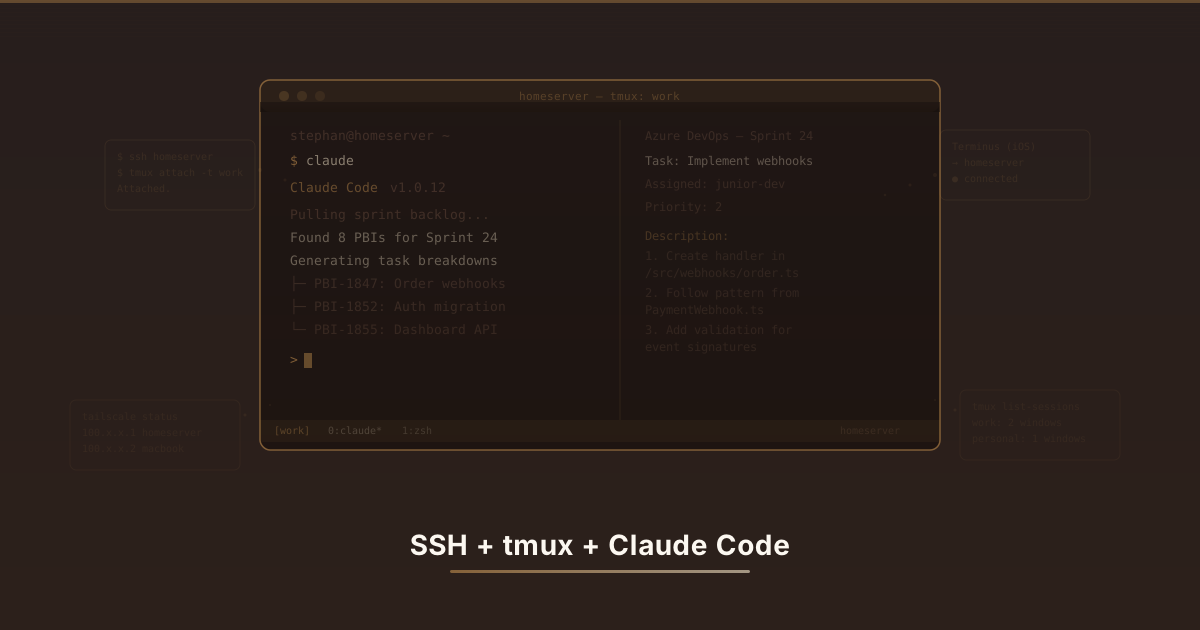
At some point, Claude Code stopped being “that AI coding thing I tried” and started being how I manage my entire workday. Task breakdowns, onboarding docs, time tracking alignment, the works. The problem was it only existed on whatever machine I happened to be sitting in front of. So I duct-taped together a setup that keeps it running from anywhere. It’s held together by SSH and stubbornness, but it works.
Why a Persistent Session Matters
If you’ve used Claude Code (Anthropic’s CLI tool for working with Claude directly in your terminal, which I compared alongside other tools in my AI coding tools roundup), you know the drill. You spend twenty minutes getting Claude up to speed on your codebase, your conventions, your current problem. Then you close your laptop. Or switch to your work desktop. Or realize you need to check something from your phone during lunch. That session is gone. You’re starting over, explaining the same codebase to an AI that has already forgotten you exist.
That’s annoying enough for coding. But I use Claude Code for way more than writing functions. Through MCP servers (Model Context Protocol, a standard that lets Claude connect to external tools and services), I’ve hooked it into our project management setup for managing the team’s work. On any given day I’m using it to:
- Generate sprint task breakdowns from product backlog items
- Write task descriptions tailored to specific developers’ skill levels
- Draft onboarding checklists for junior team members
- Cross-reference time tracking entries with actual work completed
- Write meeting follow-up notes and next steps
Rebuilding that context every time I switch machines felt like paying rent on my own brain. I needed sessions that outlive my laptop’s lid.
Claude Code is an AI assistant that runs in your terminal. You spend time explaining your project to it, and it gets better the more you talk. But when you close your laptop, poof. That whole conversation vanishes. Next time you open it, the AI has no idea who you are. It’s like building a LEGO tower all afternoon and then someone kicks it over every time you leave the room.
I use Claude Code for way more than just writing code. It helps me organize my team’s work, break big tasks into smaller ones, write documentation. Losing all that context every time I switched computers was making me want to flip a table. I needed a way to keep my LEGO tower standing even when I walk away.
What I’m Working With
Before getting into the setup, here’s the grocery list:
- A home server that stays on 24/7 (nothing fancy, an old mini PC running Arch that I probably should have thrown away)
- SSH for remote terminal access
- Tailscale (a mesh VPN built on WireGuard that creates a private network across your devices) for secure access from anywhere without punching holes in my router
- tmux (a terminal multiplexer that lets you run persistent sessions you can detach and reattach from any connection) for sessions that survive me slamming my laptop shut
- Claude Code running inside tmux
- MCP servers connecting Claude to project management tools, file systems, and other things
- Terminus (an SSH client for iOS and Android) for occasionally pretending I’m productive from my phone
Nothing exotic here. That’s the point. No single piece of this is impressive on its own, it’s just boring tools stacked on top of each other in a way that happens to be useful.
Here’s what I use:
- A small computer at home that’s always turned on (an old mini PC I rescued from the junk pile)
- SSH (a way to connect to that computer from somewhere else, like a remote control for terminals)
- Tailscale (makes my home computer reachable from anywhere, safely, without messing with my router)
- tmux (keeps programs running on the server even after I disconnect)
- Claude Code (the AI assistant, running inside tmux so it never stops)
- A phone app (so I can peek at things from the couch, which I do more than I should)
None of this is fancy. It’s just regular tools stacked together.
Getting In: SSH, Tailscale, and Making Your Server Reachable
Before tmux can do its thing, you need a way to actually reach your server from other machines. This section is the plumbing. Not the fun part, but skip it and nothing else works.
If you’re already running Claude Code on your machine, here’s a shortcut: ask it to help you set up SSH. It can generate your key, write your SSH config, and walk you through enabling sshd on the server. Honestly, it’s better at remembering the exact flags than I am, and it beats copy-pasting commands from a blog post (including this one).
Setting Up SSH on the Server
Most Linux distributions come with an SSH client installed, but the server component (the thing that accepts incoming connections) usually needs to be enabled. On Arch:
# Install OpenSSH if it's not already there
sudo pacman -S openssh

# Enable and start the SSH daemon
sudo systemctl enable --now sshd
On Ubuntu/Debian it’s sudo apt install openssh-server and the service starts automatically.
Once sshd is running, any machine on the same network can connect using ssh username@ip-address. You can find your server’s local IP with ip addr (look for the address on your main network interface, usually something like 192.168.x.x).
Test it from another machine on your local network first:
# From your laptop, on the same WiFi/LAN
ssh stephan@192.168.1.100
If that works, you’re in. If it doesn’t, check that sshd is actually running (systemctl status sshd) and that your firewall isn’t blocking port 22.
You need to install and turn on SSH on your server (the always-on computer). It’s usually two commands. Then from any other computer on the same WiFi, you can type ssh yourname@ip-address and you’re connected to it. Think of it like calling your home computer on the phone.
# Download the thing that lets other computers call yours
sudo pacman -S openssh

# Turn it on and tell it to start automatically every time.
# Like leaving the phone plugged in so it never dies.
sudo systemctl enable --now sshd
Try connecting from your laptop on the same network first. If it works, you’re golden.
Getting SSH on Your Laptop
Your server is only half of this. You also need an SSH client on whatever machine you’re connecting from.
Linux has it installed by default. You’re done.
macOS also has it built in. Open Terminal and ssh is right there.
Windows has had a native OpenSSH client since Windows 10 (build 1809), and on Windows 11 it’s enabled by default. If for some reason it’s not available, you can enable it through Settings, Apps, Optional Features, Add a feature, “OpenSSH Client”. Or from PowerShell:
Add-WindowsCapability -Online -Name OpenSSH.Client~~~~0.0.1.0# Tell Windows to install the SSH remote control. Yes, those tildes are real.
Add-WindowsCapability -Online -Name OpenSSH.Client~~~~0.0.1.0Once that’s done, the ssh command works in PowerShell and Command Prompt the same way it does on Linux and macOS. No need for PuTTY anymore (though if you’ve been using PuTTY for years, nobody’s judging. Okay, maybe a little).
Locking Down SSH
The defaults are fine for testing, but you don’t want password authentication enabled any longer than necessary. Generate an SSH key on your laptop and copy it to the server:
# On your laptop (skip if you already have a key)
# Works the same on Linux, macOS, and Windows (PowerShell)
ssh-keygen -t ed25519

# Copy your public key to the server
# Linux/macOS:
ssh-copy-id stephan@192.168.1.100

# Windows (no ssh-copy-id, so do it manually):
# This reads your public key and appends it to the server's authorized_keys
type $env:USERPROFILE\.ssh\id_ed25519.pub | ssh stephan@192.168.1.100 "mkdir -p ~/.ssh && cat >> ~/.ssh/authorized_keys"
Once you’ve confirmed you can log in with the key (no password prompt), disable password auth on the server:
# On the server, edit /etc/ssh/sshd_config
# Set these values:
#   PasswordAuthentication no
#   PermitRootLogin no

# Then restart sshd
sudo systemctl restart sshd
Typing a password every time is annoying, and passwords can be guessed. Instead, you create a special key file on your laptop and give the server a copy. It’s like a secret handshake only you two know. After that, the server recognizes your laptop automatically. Then you turn off password logins entirely so random strangers can’t keep guessing until they get in.
# Make a special secret key. It's like a magic handshake
# only your laptop and server know.
ssh-keygen -t ed25519

# Give the server a copy so it recognizes you.
# Like putting your name on the guest list.
ssh-copy-id stephan@192.168.1.100
Once the key works, disable passwords on the server. Now only your laptop (or any device with the key) can get in.
Why Tailscale and Not Port Forwarding
At this point SSH works on your local network, but only your local network. To connect from outside (the office, your phone, a coffee shop), you need the server reachable over the internet somehow.
I tried port forwarding first. Opened port 22 on my router, set up dynamic DNS, the whole thing. It worked for about a week before I started seeing brute force attempts in my auth logs. Even with key-only auth and fail2ban, having an open SSH port on a residential IP felt like leaving a welcome mat out for script kiddies.
Tailscale (a mesh VPN built on WireGuard that creates a private network across your devices) fixed that. It gives all your devices private IP addresses in the 100.x.x.x range, and nothing is exposed to the public internet. No port forwarding. No DNS nonsense. Your server is reachable from anywhere you have Tailscale installed, and completely invisible to everyone else. I set it up in about ten minutes and immediately regretted the three hours I’d spent wrestling with my router.
SSH works when your laptop and server are on the same WiFi. But what about when you’re at the office, or a coffee shop?
The obvious answer is port forwarding (telling your router to send internet traffic to your server). I tried that. Within a week, random people were trying to guess my password thousands of times a day. Not great.
Tailscale is way simpler. You install it on all your devices, and they can talk to each other over a private network no matter where they are. Nobody else can see them. No router settings to mess with. I wish I’d started here instead of wasting a whole evening on port forwarding.
Setting Up Tailscale
Install on both your server and every device you want to connect from:
# On Arch Linux (server)
sudo pacman -S tailscale
sudo systemctl enable --now tailscaled
sudo tailscale up
For your client machines:
# macOS
brew install tailscale

# Ubuntu/Debian
curl -fsSL https://tailscale.com/install.sh | sh
sudo tailscale up
On Windows, download Tailscale from tailscale.com/download. It installs as a regular app with a system tray icon. On mobile, grab it from your app store.
Once all devices are logged into the same Tailscale account, they can reach each other directly. The whole thing takes about five minutes per device, most of which is spent typing your password.
After setup, run tailscale ip on your server to get its Tailscale IP address. That’s the address you’ll use from now on instead of the local 192.168.x.x one.
Install it on your server and on every device you want to connect from. It takes about five minutes per device.
# On your server (Arch Linux)
sudo pacman -S tailscale        # Download Tailscale
sudo systemctl enable --now tailscaled  # Turn it on forever
sudo tailscale up               # Log in and join the secret clubhouse
# On a Mac
brew install tailscale
# On Ubuntu/Debian
curl -fsSL https://tailscale.com/install.sh | sh
sudo tailscale up # Same deal: log in and join the clubhouseOn Windows, just download it from tailscale.com/download. On your phone, grab it from the app store.
Once every device is logged into the same Tailscale account, they can all find each other. Run tailscale ip on your server to get its new private address. That’s the one you’ll use from now on.
SSH Config for Clean Access
Once Tailscale is running, set up your SSH client config so connecting doesn’t require remembering IP addresses.
On Linux and macOS, the config lives at ~/.ssh/config. On Windows, it’s at C:\Users\YourName\.ssh\config (and yes, the regular ssh command in PowerShell reads it).
# ~/.ssh/config (or C:\Users\YourName\.ssh\config on Windows)

Host homeserver
    HostName 100.x.x.x  # Your server's Tailscale IP
    User stephan
    IdentityFile ~/.ssh/id_ed25519
    ServerAliveInterval 60
    ServerAliveCountMax 3
Now connecting from anywhere is just:
ssh homeserverThe ServerAliveInterval and ServerAliveCountMax settings send keepalive packets every 60 seconds, which stops your connection from silently dying when you walk away. When the connection does drop (and it will, especially on mobile), tmux keeps everything running on the server side. You just reconnect and pick up where you left off.
# ~/.ssh/config (or C:\Users\YourName\.ssh\config on Windows)

# Give your server a nickname so you don't have to remember numbers
Host homeserver
    HostName 100.x.x.x           # Your server's Tailscale IP (the secret clubhouse address)
    User stephan                  # Your username on the server
    IdentityFile ~/.ssh/id_ed25519  # Point to your magic handshake key
    ServerAliveInterval 60        # Poke the connection every 60 seconds so it doesn't fall asleep
    ServerAliveCountMax 3         # Give up after 3 failed pokes
Now instead of remembering some IP address, connecting from anywhere is just:
# That's it. That's the whole command. You're welcome.
ssh homeserver
The keepalive settings stop your connection from silently dying when you walk away. And when the connection does drop (it will), tmux keeps everything running on the server. You just reconnect and pick up where you left off.
That’s the plumbing done. Now for the part that actually matters.
tmux Keeps Everything Alive
If you’ve never used tmux, the short version: it lets you create terminal sessions on the server that keep running no matter what happens to your SSH connection. You can disconnect, close your laptop, drive across town, SSH back in, and reattach to the exact same session. Every process still running, every scroll position preserved, like you never left. It’s basically hibernate for your terminal, except it actually works.
But tmux does more than just keep sessions alive. It’s a full workspace manager for your terminal, and understanding how it thinks makes it way more useful than just a crash-safety net.
tmux is a program that runs on your server and keeps your terminal sessions alive even when you disconnect. Close your laptop, turn off your WiFi, drive to work, reconnect, and everything is exactly where you left it. Think of it like pausing a video game. The game doesn’t stop, you just walk away from the TV.
It also lets you split your screen into sections, have multiple “tabs,” and switch between different projects instantly.
How tmux Actually Works
Tmux has three layers of organization. It took me an embarrassingly long time to understand the difference, so here’s the version I wish someone had given me on day one:
Sessions are the top level. Think of a session as a complete workspace. I run one session per major context (work, personal, a specific client project). Each session lives on the server whether you’re connected or not.
Windows live inside sessions. They work like tabs in a browser. You can have a window for your editor, another for running tests, another for logs. You switch between them without losing anything.
Panes live inside windows. They split a single window into multiple terminal views. Side-by-side code and output, that kind of thing.
tmux has three layers, and it’s easier to think of them as a building:
Sessions are whole apartments. You might have one for work, one for personal projects. Each one is totally separate.
Windows are rooms inside an apartment. Your code editor is in one room, your test runner in another. You walk between them.
Panes are like splitting a room with a divider. Two terminals side by side in the same window.
The hierarchy looks like this:
Session: "work"
├── Window 1: "claude"
│   └── Pane 1: Claude Code running
├── Window 2: "code"
│   ├── Pane 1: neovim
│   └── Pane 2: file watcher / build output
└── Window 3: "logs"
    └── Pane 1: tail -f on server logs
Picture it like this:
Session: "work"              ← The apartment (your whole work setup)
├── Window 1: "claude"       ← Room 1 (where the AI lives)
│   └── Pane 1: Claude Code running
├── Window 2: "code"         ← Room 2 (where YOU work)
│   ├── Pane 1: neovim                  (left side of the room)
│   └── Pane 2: file watcher / build    (right side, separated by a divider)
└── Window 3: "logs"         ← Room 3 (the room you check when stuff breaks)
    └── Pane 1: tail -f on server logs
Everything you do in tmux goes through the prefix key. By default it’s Ctrl+B, but most people (including me) rebind it to Ctrl+A because reaching for B in a hurry feels like a finger yoga pose. You press the prefix, release it, then press the actual command key. I’ll use Prefix throughout, but on my setup that means Ctrl+A.
Essential Commands
These are the commands I use constantly. I’m putting them here because I spent my first week with tmux googling the same five things over and over.
Session management (run these from your regular shell):
# Create a new named session
tmux new-session -s work

# Create a session in the background (detached)
tmux new-session -d -s personal

# List all running sessions
tmux list-sessions

# Attach to an existing session
tmux attach -t work

# Kill a session you don't need anymore
tmux kill-session -t old-project
Session management (run these from your regular shell):
# Build a new apartment and call it "work"
tmux new-session -s work

# Build an apartment in the background (you're not moving in yet)
tmux new-session -d -s personal

# Show me all my apartments
tmux list-sessions

# Walk into the "work" apartment
tmux attach -t work

# Demolish an apartment you don't need. Goodbye, old project.
tmux kill-session -t old-project
Commands from inside tmux (prefix + key):
| Keys | What it does |
|---|---|
Prefix + d | Detach from the session (it keeps running) |
Prefix + s | Show session picker to switch between sessions |
Prefix + $ | Rename the current session |
Window commands:
| Keys | What it does |
|---|---|
Prefix + c | Create a new window |
Prefix + , | Rename the current window |
Prefix + n | Next window |
Prefix + p | Previous window |
Prefix + 1-9 | Jump to window by number |
Prefix + w | Show window picker (like session picker but for windows) |
Prefix + & | Close the current window (asks for confirmation) |
Pane commands:
| Keys | What it does |
|---|---|
Prefix + % | Split pane vertically (left/right) |
Prefix + " | Split pane horizontally (top/bottom) |
Prefix + arrow keys | Move between panes |
Prefix + z | Zoom a pane to full screen (press again to unzoom) |
Prefix + x | Close the current pane |
Prefix + Space | Cycle through pane layouts |
Scrolling and copy mode:
| Keys | What it does |
|---|---|
Prefix + [ | Enter scroll/copy mode (navigate with arrow keys or Page Up/Down) |
q | Exit scroll mode |
What I Actually Use tmux For
Beyond the obvious “keep my session alive” thing, here’s why tmux is worth the learning curve:
Parallel visibility. I’ll have Claude Code running in one pane and the project’s file tree or test output in another. When Claude suggests a change, I can see the relevant code right next to it. No alt-tabbing, no “wait which file was that in.”
Background processes. Start a build, a test suite, or a long-running Claude task in one window, then switch to another and keep working. It’s all still going. Check back whenever.
Quick context switches. Prefix + s brings up the session picker. I can jump from my work session to a personal project in two keystrokes. Each session has its own windows, its own running processes, its own scroll history. Nothing bleeds between them.
Pair debugging. If a colleague needs to see what I’m looking at, they can SSH into the same server and attach to the same tmux session. Both of us see and type in the same terminal in real time. It’s like screen sharing for people who think GUIs are a crutch.
Besides keeping things running when you disconnect, tmux is like having a desk with multiple drawers you can switch between:
- See two things at once. AI on the left, your code on the right. Like having two coloring books open side by side. No flipping back and forth.
- Run stuff in the background. Start a slow task in one drawer, switch to another and keep working. Check back whenever. It’s still chugging along.
- Switch between projects instantly. Two keystrokes to jump from work to personal. Each drawer has its own stuff and nothing spills into the others.
- Share your screen. Someone else can SSH in and look at (or scribble in) the same terminal. Like two kids sharing one coloring book, except less fighting.
My tmux Config
I keep my config minimal. The defaults are fine for most things, and I’ve learned the hard way that over-customizing tmux leads to a config file that only makes sense to you at 2 AM on a Wednesday.
# ~/.tmux.conf

# Better prefix key (Ctrl+A instead of Ctrl+B)
unbind C-b
set -g prefix C-a
bind C-a send-prefix

# Mouse support (fight me)
set -g mouse on

# Bigger scrollback
set -g history-limit 50000

# Start window/pane numbering at 1, not 0
set -g base-index 1
setw -g pane-base-index 1

# Renumber windows when one is closed
set -g renumber-windows on

# Reduce escape delay (important for vim/neovim users)
set -sg escape-time 10

# True color support
set -g default-terminal "tmux-256color"
set -ag terminal-overrides ",xterm-256color:RGB"

# Don't rename windows automatically
set -g allow-rename off
# ~/.tmux.conf
# Change the magic button from Ctrl+B to Ctrl+A.
# B is too far away. My fingers aren't that coordinated.
unbind C-b
set -g prefix C-a
bind C-a send-prefix
# Let me click things with the mouse. Yes, real terminal people judge me. No, I don't care.
set -g mouse on
# Remember 50,000 lines of scrollback. Goldfish memory no more.
set -g history-limit 50000
# Start counting windows at 1, not 0. Because we're humans, not arrays.
set -g base-index 1
setw -g pane-base-index 1
# When you close window 2, don't leave a gap. Scoot 3 over to fill the hole.
set -g renumber-windows on
# Make the Escape key respond faster. Vim users, you know the pain.
set -sg escape-time 10
# Pretty colors. Without this, your terminal looks like it's from 1998.
set -g default-terminal "tmux-256color"
set -ag terminal-overrides ",xterm-256color:RGB"
# Stop renaming my windows. I named them for a reason.
set -g allow-rename offThe mouse support line is controversial in tmux circles, apparently. I enable it because I occasionally want to click on a pane or scroll with the trackpad, and I don’t care enough about terminal purity to disable it. If you want more terminal customization ideas beyond tmux, I have a post on terminal productivity hacks covering fzf, zoxide, and other tools that pair well with this setup.
Named Sessions for Different Contexts
I run separate tmux sessions for different work contexts:
# Create named sessions
tmux new-session -d -s work
tmux new-session -d -s personal
tmux new-session -d -s client-a    # Client project

# List all running sessions
tmux list-sessions

# Attach to a specific session
tmux attach -t work
I run separate sessions for different projects. One apartment per context:
# Build three apartments in the background, each with a name on the door
tmux new-session -d -s work       # The day job apartment
tmux new-session -d -s personal   # The fun stuff apartment
tmux new-session -d -s client-a   # That one client's apartment

# Show me all my apartments
tmux list-sessions

# Walk into the work apartment
tmux attach -t work
The Daily Routine
My typical day looks something like this:
- Morning at the home desk: SSH into the server,
tmux attach -t work. Claude Code is still running from yesterday, context intact. - Move to the office: Close the laptop, SSH from the work machine, reattach. Same session, same state.
- Quick check from my phone: Open Terminus, SSH in, glance at what Claude has been working on.
- End of day: Close the terminal. Detach happens automatically. The session keeps running on the server.
I almost never kill tmux sessions. They accumulate like browser tabs you swear you’ll get back to. The only time I clean up is when tmux list-sessions starts looking like an archaeological dig of abandoned projects.
Claude Code in the Mix
With SSH and tmux handling the connectivity, Claude Code just needs to run inside a tmux session on the server. Install it, start it, and it sticks around as long as the session does.
Now that you can connect to your server from anywhere and tmux keeps things running, you just start Claude Code inside a tmux session. That’s it. It stays running forever (or until the power goes out).
Starting Claude Code in tmux
# Attach to work session
tmux attach -t work

# Start Claude Code
claude
That’s it. Seriously. Claude Code is now running in a persistent session, and you can reach it from any device on your Tailscale network.
# Walk into your work apartment
tmux attach -t work

# Wake up the AI. It lives here now.
claude
That’s it. Two commands. Claude Code is now running in a session that never dies, and you can reach it from any device. I told you the payoff was worth the plumbing.
MCP Servers for Project Management
The part that surprised me most was how useful Claude gets when you connect it to external tools through MCP. I have MCP servers configured for our project management platform, and it basically turned Claude from “AI that writes code” into “AI that also does half my project management.”
The setup uses Azure CLI for authentication, so there’s no API key to manage:
# Install Azure CLI and log in on the server
sudo pacman -S azure-cli
az login --use-device-code
az devops configure --defaults \
    organization=https://dev.azure.com/yourorg \
    project=YourProject
Once the MCP server is configured in Claude Code’s settings, Claude can query work items, create tasks, update descriptions, and pull sprint data directly. My daily routine with it usually looks like:
- Ask Claude to pull the current sprint’s backlog items
- Have it generate task breakdowns with estimated effort
- Review and adjust the descriptions (especially for juniors, where I want more detail and context)
- Push the tasks to the project management tool directly from the session
- Later in the day, ask Claude to summarize progress and flag anything that looks stuck
Claude Code can connect to other tools through something called MCP (Model Context Protocol). Think of it like giving the AI extra crayons. Instead of just writing code, now it can also talk to our project tracker, look up tasks, and create new ones.
I connected it to our team’s project management system. The setup looks like this:
# Install the Azure CLI (the thing that lets you log into work stuff)
sudo pacman -S azure-cli

# Log in. It gives you a code to type into a website. Old school, but it works.
az login --use-device-code

# Tell it which project you're working on
az devops configure --defaults \
    organization=https://dev.azure.com/yourorg \
    project=YourProject
My daily workflow is basically: ask Claude what’s in the sprint, have it break things into tasks, review the output, and push it all to our project tracker. It handles the busywork while I handle the “does this actually make sense” part.
Onboarding and Skill-Matched Task Descriptions
One thing I stumbled into by accident: having Claude write task descriptions calibrated to specific developers. A senior dev gets a task that says “implement the webhook handler for order events, follow the existing pattern in OrderService.” A junior developer working on the same feature gets step-by-step guidance, links to relevant code, and a list of things to watch out for. Same work item, different level of hand-holding.
I wouldn’t call this a polished system. It’s more of a pattern I fell into that works surprisingly well. I keep notes about each team member’s experience level and areas they’re growing in, and Claude uses those to adjust its output. Saves me from writing onboarding-style descriptions by hand, which I’m honestly terrible at being consistent with.
I also use Claude to write task descriptions that match each developer’s experience level. A senior dev gets the short version. A junior gets more detail, links to relevant code, and warnings about common mistakes. Same task, different explanations. It’s like giving one kid the LEGO set with just the picture on the box, and giving another kid the step-by-step instructions with the big numbered pictures. I stumbled into this by accident and now I can’t imagine doing it any other way.
Checking In from My Phone
Terminus (an SSH client for iOS and Android) on my phone connects to the home server through Tailscale, and I can attach to tmux sessions from the couch. This sounds way cooler than it actually is in practice.
It’s good for:
- Checking if a long-running task finished
- Reading Claude’s output from a question I asked earlier
- Quick “did the build pass” glances
It’s bad for:
- Actually typing anything longer than a sentence
- Reviewing code diffs
- Any real interactive work with Claude
I use it maybe two or three times a week, usually when I’m away from my desk and want to check on something. It’s a nice escape hatch, not a primary workflow. Don’t go into this expecting to do serious work from your phone. You will be disappointed and your thumbs will hurt.
I can check on Claude from my phone using an app called Terminus. Sounds cool, right? In reality it’s like trying to color with crayons while wearing oven mitts. You can peek at the picture, but actually drawing anything is miserable. It’s mostly good for one thing: checking whether a long task finished. I use it a couple times a week, tops, and every time I think “why didn’t I just wait until I got to my laptop.”
What’s Still Rough
I want to be upfront about the friction here, because reading this back makes it sound way smoother than my actual day-to-day experience.
Session management is manual. There’s no dashboard telling me which sessions are active or which Claude instances have been idle for hours. I just run tmux list-sessions and try to remember what each one was for. It works, but it’s held together by naming conventions and the fading remnants of my short-term memory.
Network hiccups happen. Tailscale is solid, but SSH connections over mobile networks still drop. The tmux reattach handles this fine (nothing is lost), but there’s always a few seconds of “is it frozen or just slow” anxiety after reconnecting.
Auth tokens expire. Azure CLI tokens have a shelf life, and when they expire, Claude’s project management connection quietly stops working. I’ve gotten better at recognizing the symptoms, but I still waste a few minutes every couple weeks wondering why a query returned nothing before remembering to run az login again.
The team is mid-transition. We’re moving from our current project management platform to custom-built software. That means my MCP setup is targeting a system we’re actively migrating away from. It still works fine for now, but I know the integration will need a rebuild when the new system is ready. Classic “building on top of the thing you’re replacing” situation.
It’s not all smooth:
- I forget which sessions are which. No fancy dashboard, just naming things and hoping I remember what “client-a” was about.
- Connections drop sometimes. Nothing is lost (tmux saves everything), but reconnecting always comes with a moment of “please still be there.”
- Login tokens expire. Every couple weeks the connection to our project management tool silently breaks. The fix is one command, but first I have to realize it’s broken.
- We’re switching platforms. So half of this integration is going to need a rewrite soon anyway. Great.
What I’m Considering Next
A few improvements I’ve been thinking about, in various stages of “I should really do that”:
Automated session bootstrap. A script that creates my standard tmux layout (named sessions, pre-configured panes, Claude Code already started) when the server boots. Right now I set things up manually after reboots, which is rare but annoying every single time.
Session status notifications. Some way to get pinged when a long-running Claude task finishes. Right now I just check back periodically, which kind of defeats the whole “kick it off and walk away” thing.
Planning and scheduling automation. This is the one I keep circling back to. Our internal tools have gotten good enough at task management that Claude Code’s role in my work is shifting. The AI stuff built into our new platform handles most of the sprint planning and task breakdowns I was using Claude for. So I’m starting to point Claude at a different problem: automating the planning side of my life. Weekly reviews, blocking out focus time, aligning work calendar with personal calendar. It’s early and I don’t have a system yet, but the persistent session setup makes it cheap to experiment.
Figuring out what goes where. Now that our team’s software has its own AI features, there’s overlap. Some things belong inside the platform (anything the whole team touches). Some things are better as a private Claude session (thinking through priorities, drafting plans before they’re official, anything I want to iterate on before it’s visible to the team). I’m still finding that line. It probably shifts depending on the week.
Personal stuff beyond work. This one snuck up on me. Once you have a persistent AI session reachable from your phone, you start using it for things that have nothing to do with code. Meal planning, travel logistics, organizing personal projects, drafting emails I’ve been sitting on for way too long. Having Claude already running and accessible lowers the activation energy enough that I actually use it instead of procrastinating. I didn’t set out to do this. It just happened.
Most of these are half-formed ideas, not items on a roadmap. But the nice thing about this setup is that trying stuff is cheap. Spin up a new tmux session, see if something sticks, kill it if it doesn’t.
Start Small
If you want to try something like this, you don’t need a dedicated server on day one. Any machine that stays on (a NAS, a Raspberry Pi, an old laptop with the lid closed) works fine:
- Install Tailscale on two machines
- SSH from one to the other
- Start a tmux session and run something in it
- Close the SSH connection, reconnect, and reattach
If that workflow clicks for you, add Claude Code and MCP servers later. The whole thing only makes sense if persistent terminal sessions solve a real problem for you. If you don’t have the “I closed my laptop and lost my context” problem, this is probably overkill. And that’s fine.
Running any kind of remote Claude Code setup? I’m curious if anyone has solved the auth token expiry thing more gracefully than “just run az login again.” Always looking to steal good ideas.


Stephan Birkeland
Consultant and developer based in Norway. Runs on coffee, curiosity, and a questionable number of side projects.

