Git Workflows That Actually Work for Solo Developers
 16 min read
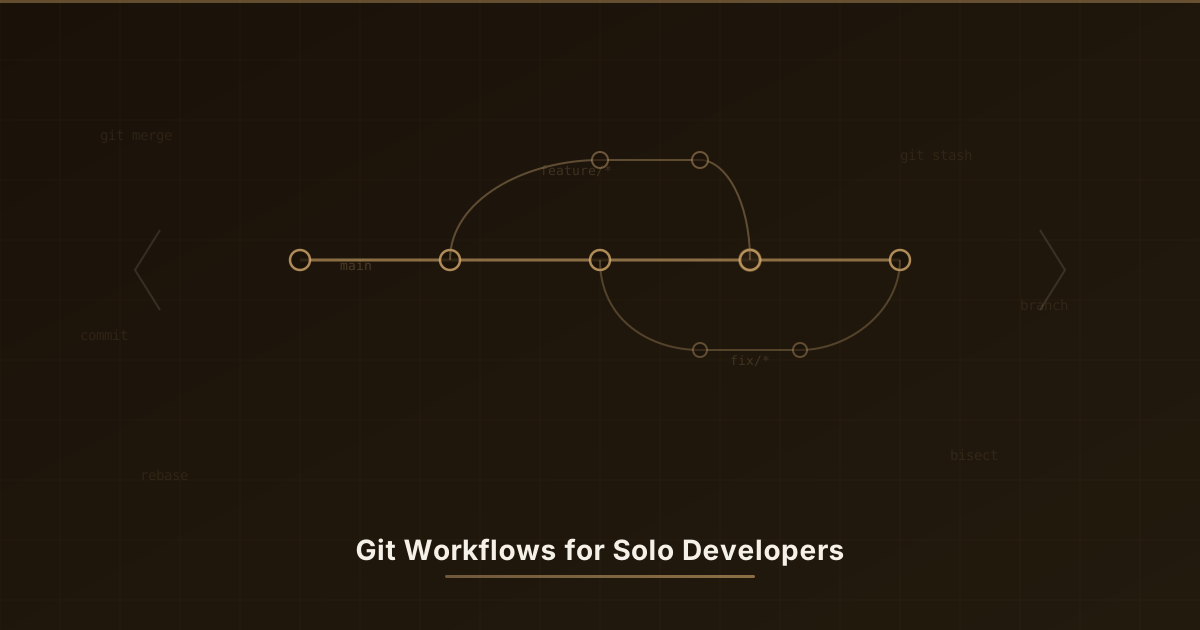
I once spent an afternoon setting up Git Flow for a project only I would ever touch. Develop branch, release branches, hotfix branches, the whole liturgy. By day three I was merging branches like a bureaucrat stamping forms, accomplishing nothing. Git Flow is brilliant for teams. For a solo developer, it’s like hiring a full security detail to walk your dog.
Here’s what I actually use now.
The Solo Branch Strategy
Three branch types. That’s it. No flowcharts required.
main          ← always deployable
feature/*     ← one branch per feature or experiment
fix/*         ← bug fixes
main is sacred ground. It always works, it always deploys. Everything else branches off main and merges back into it when it’s ready.
# Start a new feature
git checkout -b feature/auth-system main

# Start a bug fix
git checkout -b fix/login-redirect main

# When done, merge back
git checkout main
git merge --no-ff feature/auth-system
git branch -d feature/auth-system
The --no-ff flag creates a merge commit even when fast-forward is possible. This keeps your history readable. You can see that “these five commits were the auth feature” instead of just a flat list of commits where everything blurs together.
OK so imagine you have a coloring book that’s perfect and beautiful. You’d never scribble experiments directly in the nice book, right? You’d grab a piece of scrap paper, try stuff out, and only copy the good parts back into the nice book when you’re happy.
That’s branches. main is the nice coloring book. feature/* is scrap paper for new ideas. fix/* is scrap paper for fixing mistakes. When you’re done with the scrap paper, you copy the good stuff into the nice book and throw the scrap away. Three types of paper. That’s the whole system. I spent way too long overcomplicating this before landing here.
Commit Hygiene That Pays Off
Your commit messages are postcards to future-you. And future-you will be tired, confused, and debugging something at 11 PM. Be kind to that person.
I once wrote “fix stuff” as a commit message. Six months later I stared at that commit trying to understand what “stuff” was. My git history read like the five stages of grief: denial, anger, bargaining, more anger, and eventually git blame.
Every time you save your code, you write a little sticky note about what you changed. Future-you is going to read these sticky notes at 11 PM while exhausted and confused. “fix stuff” doesn’t help that person. “fixed the login button so it stops logging people out randomly” does. I learned this the hard way after writing “fix stuff” and spending an hour six months later trying to figure out what “stuff” was. Be nice to future-you. That person is tired.
The Format I Use
<type>: <short summary in imperative mood>

<optional body explaining WHY, not WHAT>
# The recipe for a good sticky note:
# [what kind of change]: [what you actually did]
#
# Then optionally explain WHY you did it
# (because future-you won't remember)
<type>: <short summary in imperative mood>
<optional body explaining WHY, not WHAT>Types I actually use:
feat:new functionalityfix:bug fixrefactor:restructuring without behavior changechore:dependency updates, config, toolingdocs:documentation only
# Good commits
git commit -m "feat: add rate limiting to API endpoints"
git commit -m "fix: prevent duplicate form submissions on slow connections"
git commit -m "refactor: extract validation logic into shared module"

# Bad commits
git commit -m "updates"
git commit -m "fix bug"
git commit -m "WIP"
# Good sticky notes (future-you says thank you):
git commit -m "feat: add rate limiting to API endpoints"
git commit -m "fix: prevent duplicate form submissions on slow connections"
git commit -m "refactor: extract validation logic into shared module"
# Bad sticky notes (future-you says words I can't type here):
git commit -m "updates" # Updates WHAT? To WHAT? WHY?
git commit -m "fix bug" # Which bug?? There are hundreds??
git commit -m "WIP" # Congratulations, everything is WIPAtomic Commits
Each commit should do one thing. If you changed the auth system and also reformatted a CSS file, those are separate commits. Mixing them is like packing your lunch and your tax documents in the same bag. Technically possible, practically regrettable.
# Stage specific files or hunks, not everything
git add -p  # Interactive staging, hunk by hunk
The -p flag might be the single most underused git feature. It lets you stage individual chunks of changes within a file. Changed a function and also fixed an unrelated typo in the same file? Separate commits. Your future self and git bisect will both thank you.
Each save should be about ONE thing. If you fixed a bug AND rearranged the furniture in a different file, those are two separate saves. It’s like if you cleaned your room and also painted a picture. You wouldn’t call that one activity, that’s two things. Mixing them together makes it impossible to undo just one later. git add -p lets you pick exactly which changes go into each save, even if they’re in the same file. It’s annoyingly useful.
Git Bisect Will Save Your Debugging Sessions
Something broke and you have no idea which of the last 50 commits did it. You could read through all of them like a detective novel, or you could let git do a binary search and pinpoint the culprit in about six steps.
Something broke and you have no clue which of your last 50 changes did it. Checking all 50 one by one would take forever. git bisect plays a game with you: it picks the change in the middle, you tell it “working” or “broken,” and it cuts the remaining pile in half. Six rounds later, it points at the exact change that broke things. It’s literally the “I’m thinking of a number between 1 and 50” game, except the prize is finding your bug instead of winning a goldfish.
# Start bisect
git bisect start

# Mark the current (broken) commit as bad
git bisect bad

# Mark a known-good commit (e.g., last week's release)
git bisect good v1.2.0

# Git checks out a middle commit. Test it, then:
git bisect good   # if this commit works fine
git bisect bad    # if this commit is broken

# Repeat until git identifies the exact breaking commit
# When done:
git bisect reset
# Start the guessing game
git bisect start
# "This one is broken." (point at the mess)
git bisect bad
# "This old one was fine." (point at the last time it worked)
git bisect good v1.2.0
# Git picks one in the middle. You test it, then:
git bisect good # "This one works!" (pile gets smaller)
git bisect bad # "Nope, still broken." (pile gets smaller)
# Keep going until git catches the culprit.
# Game over, clean up:
git bisect resetThis only works well if your commits are atomic and each one actually builds. Another reason commit hygiene isn’t just aesthetic, it’s functional.
The Stash Workflow
I use git stash the way some people use sticky notes: constantly, sometimes messily, but always glad it’s there. It’s the fastest way to context-switch without committing half-finished work.
You know when you’re building something with LEGOs and someone says dinner is ready RIGHT NOW? You can’t finish, but you don’t want to lose your place. git stash is like sweeping all your half-built pieces into a box, having dinner with a clean table, and then dumping the box back out exactly where you left off. I do this approximately 47 times a week.
Basic Stashing
# Stash current changes (tracked files only)
git stash

# Stash everything, including untracked files
git stash -u

# Stash with a descriptive message
git stash push -m "halfway through refactoring auth middleware"

# List all stashes
git stash list
# stash@{0}: On feature/auth: halfway through refactoring auth middleware
# stash@{1}: WIP on main: abc1234 previous stash

# Apply most recent stash (keeps it in the stash list)
git stash apply

# Apply and remove from stash list
git stash pop

# Apply a specific stash
git stash apply stash@{1}
# Sweep your LEGO pieces into the box (just the ones git knows about)
git stash
# Sweep EVERYTHING into the box, even the new pieces
git stash -u
# Sweep into a LABELED box (so you remember what's in there later)
git stash push -m "halfway through refactoring auth middleware"
# "What boxes do I have?" (you will have more than you think)
git stash list
# Dump the latest box back out (box stays on the shelf just in case)
git stash apply
# Dump the latest box back out AND throw the box away
git stash pop
# Dump a SPECIFIC box back out (because you're organized like that)
git stash apply stash@{1}Stash Specific Files
Sometimes you only need to shelve certain changes, maybe you want to test something without your experimental UI tweaks getting in the way:
# Stash only specific files
git stash push -m "UI experiments" src/components/Header.tsx src/styles/layout.css

# Stash everything except staged changes
git stash push --keep-index
# Only sweep THESE specific LEGO pieces into the box
git stash push -m "UI experiments" src/components/Header.tsx src/styles/layout.css
# Sweep everything EXCEPT the pieces you already picked out to keep
git stash push --keep-indexCleaning Up History with Interactive Rebase
Before merging a feature branch, I clean up the commits. This is where you turn your messy, stream-of-consciousness working history into a clean narrative. Think of it as editing a rough draft before publishing. The ideas are the same, but the presentation improves dramatically.
# Rebase the last 5 commits
git rebase -i HEAD~5
This opens your editor with something like:
pick a1b2c3d feat: add user authentication
pick e4f5g6h fix typo in auth module
pick i7j8k9l WIP: experimenting with JWT
pick m0n1o2p feat: add JWT token validation
pick q3r4s5t fix: handle expired tokens
Change it to:
pick a1b2c3d feat: add user authentication
fixup e4f5g6h fix typo in auth module
squash i7j8k9l WIP: experimenting with JWT
pick m0n1o2p feat: add JWT token validation
pick q3r4s5t fix: handle expired tokens
The key commands:
- pick keep the commit as-is
- squash merge into previous commit, combine messages
- fixup merge into previous commit, discard this message
- reword keep the commit but edit the message
- drop delete the commit entirely
Nobody needs to see your “WIP” and “fix typo” commits. Those are the rough sketches. Ship the finished painting.
While I’m working, my saves look like “WIP,” “ugh still broken,” “ok maybe this time,” and “FINALLY.” Before I put that mess into the nice coloring book, I tidy up. Interactive rebase lets me squish all those panicked saves into one clean one that says “added user login.” It’s like writing a messy first draft of a story and then rewriting it neatly before showing anyone. Nobody needs to see the “FINALLY” save. That’s between me and my keyboard.
Useful Git Aliases for Solo Work
These live in my ~/.gitconfig (you can see my full git configuration in my developer workflow setup) and I use most of them daily:
[alias]
  # Quick status
  s = status -sb

  # Pretty log
  lg = log --oneline --graph --decorate -20

  # Show what changed in the last commit
  last = log -1 --stat

  # Undo last commit but keep changes staged
  undo = reset --soft HEAD~1

  # Amend without editing the message
  amend = commit --amend --no-edit

  # Show all branches with last commit info
  branches = branch -v --sort=-committerdate

  # Diff with word-level changes
  wdiff = diff --word-diff

  # Find commits that introduced or removed a string
  search = log -S

  # Show files changed between two branches
  changed = diff --name-only
[alias]
s = status -sb # "What's going on?" but shorter
lg = log --oneline --graph --decorate -20 # Pretty picture of your saves
last = log -1 --stat # "What did I just do?"
undo = reset --soft HEAD~1 # The "oops" button. Undoes your last save but keeps your work
amend = commit --amend --no-edit # "Actually, add this to the last save too"
branches = branch -v --sort=-committerdate # Show all your scrap paper, newest first
wdiff = diff --word-diff # Show changes word-by-word instead of line-by-line
search = log -S # Treasure hunt: find when a specific word appeared or vanished
changed = diff --name-only # "Which files are different between these two?"Usage examples:
git s                           # Quick status
git lg                          # Visual log
git undo                        # Oops, undo last commit
git search "API_KEY" -- .       # Find when API_KEY was added/removed
git changed main..feature/auth  # What files differ between branches
git s # "What's going on?" (two letters instead of twenty)
git lg # Draw me a pretty picture of my saves
git undo # UNDO UNDO UNDO (but calmly)
git search "API_KEY" -- . # "When did API_KEY show up? WHO PUT THAT THERE?" (it was me)
git changed main..feature/auth # "What did I actually change on this scrap paper?"git lg alone is worth the setup. The default git log output looks like it was designed to be read by machines, not humans.
The “Oops” Recovery Toolkit
Mistakes happen. I’ve committed to the wrong branch, deleted branches I needed, and once managed to lose an entire afternoon’s work (briefly). Git has a safety net for almost everything:
# Committed to the wrong branch
git undo                        # Undo the commit (changes stay staged)
git stash                       # Stash the changes
git checkout correct-branch     # Switch to the right branch
git stash pop                   # Apply the changes
git commit -m "feat: the thing" # Recommit

# Accidentally deleted a branch
git reflog                      # Find the commit hash
git checkout -b recovered-branch abc1234

# Need to change the last commit message
git commit --amend -m "fix: correct message"

# Staged a file you didn't mean to
git restore --staged path/to/file

# Want to completely discard changes to a file
git restore path/to/file
Git has a secret undo button for almost everything. Saved to the wrong place? Undo, scoop it up, move it, save again. Accidentally deleted something? There’s a hidden log called reflog that remembers every single thing you did for the last 90 days. It’s like a security camera for your project that nobody told you was running. I’ve had full panic attacks thinking I lost hours of work, only to find reflog sitting there going “relax buddy, I got it all on tape.”
Tags for Solo Releases
Even on solo projects, tagging releases costs nothing and makes rollbacks trivial. I tag every deployment, no exceptions:
# Create an annotated tag
git tag -a v1.0.0 -m "First stable release"

# Tag a past commit
git tag -a v0.9.0 -m "Beta release" abc1234

# List tags
git tag -l "v1.*"

# Push tags to remote
git push origin --tags
# Stick a gold star sticker on this version: "This one's ready!"
git tag -a v1.0.0 -m "First stable release"
# Stick a sticker on an OLDER version (time travel stickering)
git tag -a v0.9.0 -m "Beta release" abc1234
# "Show me all my gold stars"
git tag -l "v1.*"
# Send your stickers to the cloud so they don't get lost
git push origin --tagsWhen something breaks in production (and it will) I can immediately see exactly what changed:
git diff v1.2.0..v1.3.0 --stat# "What changed between the 'this worked' sticker and the 'this broke everything' sticker?"
git diff v1.2.0..v1.3.0 --statNo scrolling through commits trying to remember what got deployed. Just a clean diff between two tags.
My Daily Git Rhythm
A typical day looks like this:
- Morning: Pull latest
main, create a feature branch - During work: Small, atomic commits. Stash freely when context-switching
- Before merge: Interactive rebase to clean up history
- Merge:
--no-ffmerge intomain, delete the feature branch - Deploy: Tag the release
It’s lightweight enough that it never feels like paperwork, but structured enough that I can always reconstruct what happened and why. The sweet spot between chaos and ceremony.
Morning: grab the latest stuff. Make a scrap-paper branch. Work on it all day, saving small clear notes as I go. Before I’m done, tidy up the messy saves. Copy the good stuff into the nice book. Stick a label on it. That’s it. The entire point is that it’s simple enough that I actually follow it every single day. Any system that feels like homework gets abandoned by Wednesday. I know because I’ve abandoned several by Wednesday.
I spent years overthinking this. Turns out the best solo git workflow is the one simple enough that you actually follow it. If you want more ways to shave time off repetitive terminal work, I wrote about 10 terminal productivity hacks that pair well with these git habits.
Got a git trick I should know about? I’m always one good alias away from mass-producing slightly cleaner code.



Stephan Birkeland
Consultant and developer based in Norway. Runs on coffee, curiosity, and a questionable number of side projects.

